

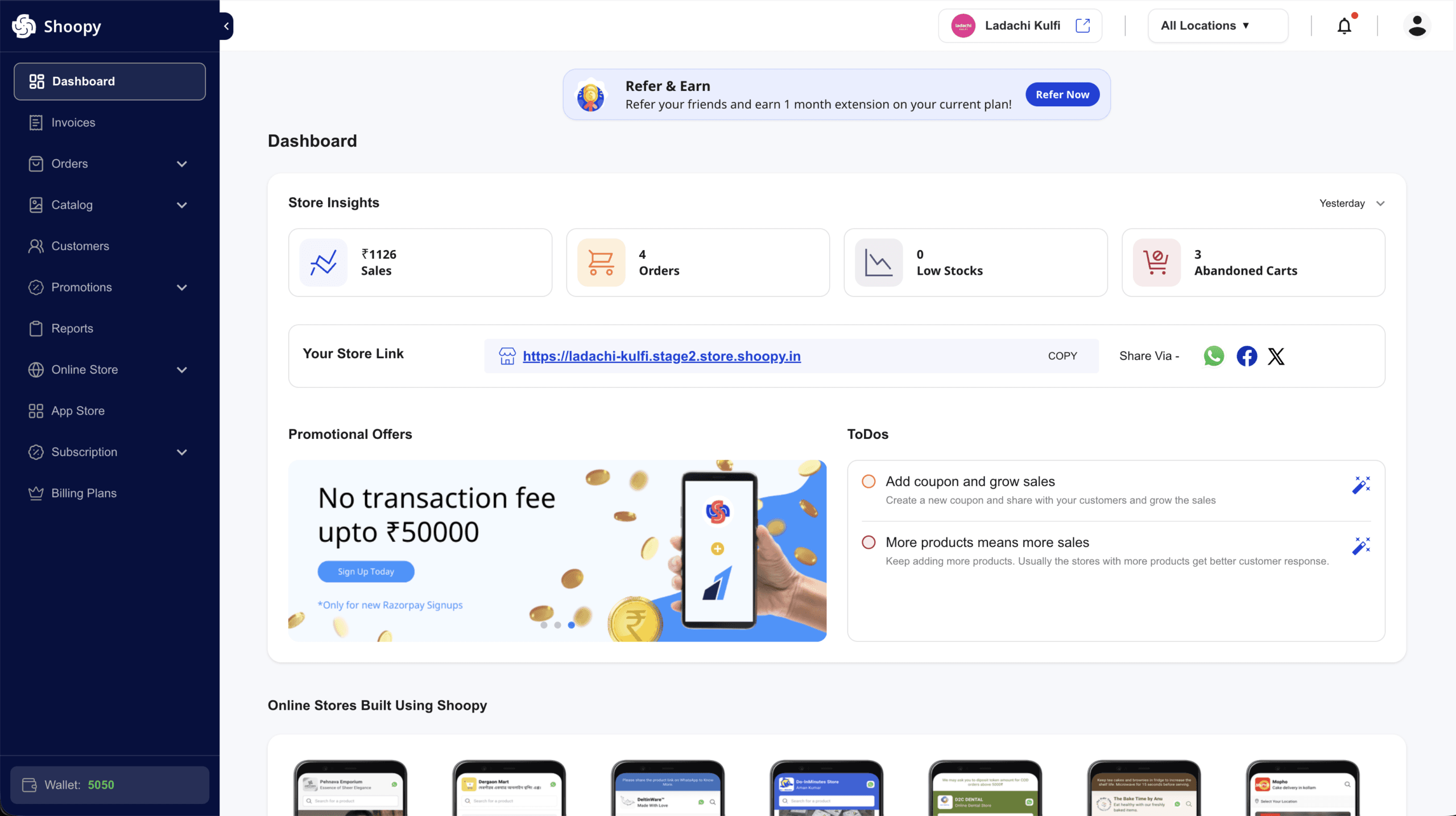
The Shoopy home dashboard is your daily snapshot. In short, the Shoopy home dashboard shows four insight cards, a setup to-do list, and example stores. So, you can see how your store is doing without digging into reports. Also, each insight card on the Shoopy home dashboard refreshes when you switch the date range. Therefore, you can spot a good day or a slow week in seconds. For a live example of a Shoopy-powered storefront, visit www.aziri.in.
Before you begin #
- First, sign in to your Shoopy admin. For details, see Logging in with OTP.
- Also, your role must allow you to view insights. For example, owners, admins, and location admins all see the cards.
- However, some cards are hidden for certain roles. In short, a Sales Rep doesn’t see Abandoned Carts.
- Finally, a new term in this article? Then, check the Glossary of Shoopy terms.
How to open the Shoopy home dashboard #
First, open the Shoopy admin at web.shoopy.in or at your custom domain. Then, click Dashboard in the sidebar. As a result, the Shoopy home dashboard loads with the four insight cards on top.
The four insight cards on the Shoopy home dashboard #
The four cards sit at the top of the Shoopy home dashboard. Also, each card has its own label, value, and icon. Finally, all four cards react to the date-range dropdown.

Sales #
Sales shows revenue for the selected date range. Also, the number uses your store’s currency symbol. For example, Indian stores see ₹ and US stores see $. In short, this is money in — not orders count.
Orders #
Orders shows the count of new orders in the selected range. Also, it counts both storefront and staff-created orders. Therefore, the Orders number is never smaller than the Sales card’s order count.
Low Stocks #
Low Stocks shows how many SKUs are below your stock threshold. In short, it’s a heads-up to restock. Also, the card doesn’t react to the date range. Specifically, it always shows the current stock state.
Abandoned Carts #
Abandoned Carts shows the count of carts that never checked out. Also, this card reacts to the date range. However, it’s gated by permission. In short, a Sales Rep role doesn’t see this card at all. For more on the term itself, see the Glossary of Shoopy terms.
The date-range dropdown #
Each insight card reacts to the active date range. So, a dropdown at the top of the card strip lets you switch the window. Also, Shoopy remembers your last choice within the same browser session — the pick is reset to Today on sign-in. The six options are:
- Today
- Yesterday
- This Week
- Last Week
- This Month
- Last Month
For a deeper look at each range, see Dashboard date ranges.
The setup to-do list #
Below the insight cards, Shoopy shows a setup to-do list. In short, it highlights next steps for a new store. For example, tasks like “Add Products”, “Setup Logo”, or “Add Coupon” can appear. Also, each task has a button that takes you to the right module. Finally, the list shrinks as you tick items off. However, Shoopy hides the to-do list on custom-domain admin panels for a cleaner look.
Promotional banners and example stores #
Next to the to-do list, you may see a banner carousel. For example, it can showcase a seasonal campaign or a new Shoopy feature. Also, further down the page, Shoopy shows a carousel of example stores on the platform. So, you can browse for design inspiration. However, Shoopy hides both blocks on custom-domain admins.
What the Shoopy home dashboard shows on an empty store #
A brand-new store has no sales or orders yet. Therefore, all four insight cards show 0. Also, the to-do list is long on day one. In short, the Shoopy home dashboard doubles as a setup checklist until you complete the basics.
What the Shoopy home dashboard shows by role #
Shoopy hides or shows dashboard blocks based on your staff role. Also, this keeps the Shoopy home dashboard view relevant for each teammate. The table below sums up the gating:
| Block | Who sees it |
|---|---|
| Insight cards (Sales, Orders, Low Stocks) | Owner, Admin, Location Admin, Marketing Manager, Sales Rep |
| Abandoned Carts card | Owner, Admin, Billing Manager, Location Admin |
| Setup to-do list | Owner, Admin, Billing Manager, Location Admin |
| Banner carousel & example stores | Hidden on custom-domain admins |
For a full map of roles, see A tour of the Shoopy admin panel.
Tips #
- Pick a range that matches your cadence. For example, a daily check fits “Today”; a weekly review fits “This Week”.
- Act on Low Stocks first. Specifically, low stock is the only card that can lose you sales in the next hour. So, restock or adjust thresholds before checking Sales.
- Use the to-do list on day one. In short, the checklist guides you through the store-setup flow end to end.
Troubleshooting #
Insight cards show “0” for a busy day #
First, check the date range dropdown. Often, the filter is still on “Today” at 6 AM. So, no orders have come in yet. Then, switch to “Yesterday” or “Last Week” to see past activity.
I can’t see the Abandoned Carts card #
In short, your staff role is missing the Abandoned Carts permission. Therefore, ask the store owner to grant you the right role. Also, the store owner can review roles under Online Store → Users & Roles.
The dashboard feels empty on my custom domain #
Custom-domain admins hide the banner carousel and example stores for a cleaner look. So, this is by design. However, the four insight cards and the setup to-do list still appear.
Related articles #
- Dashboard KPIs explained
- Dashboard date ranges
- A tour of the Shoopy admin panel
- Glossary of Shoopy terms
Category: Dashboard · Author: Shoopy Team · Last reviewed: 2026-04-20