

Shoopy uses OTP-based login — so every time you sign in, you receive a one-time password (OTP) on SMS, WhatsApp, or email. As a result, you never set or remember a password. In short, the same flow works for owners, staff, and agency partners across all Shoopy stores, including storefronts on custom domains like www.instaecart.com.
Before you begin #
- You need a phone number or email that’s already associated with a Shoopy account. If not, first create one — see Create your Shoopy account.
- Also, keep your phone handy; the OTP arrives within a few seconds over SMS or WhatsApp.
- Finally, if you’re signing in from a new device or browser, Shoopy will ask you for a fresh OTP even if you’ve logged in before on another device.
The login flow at a glance #
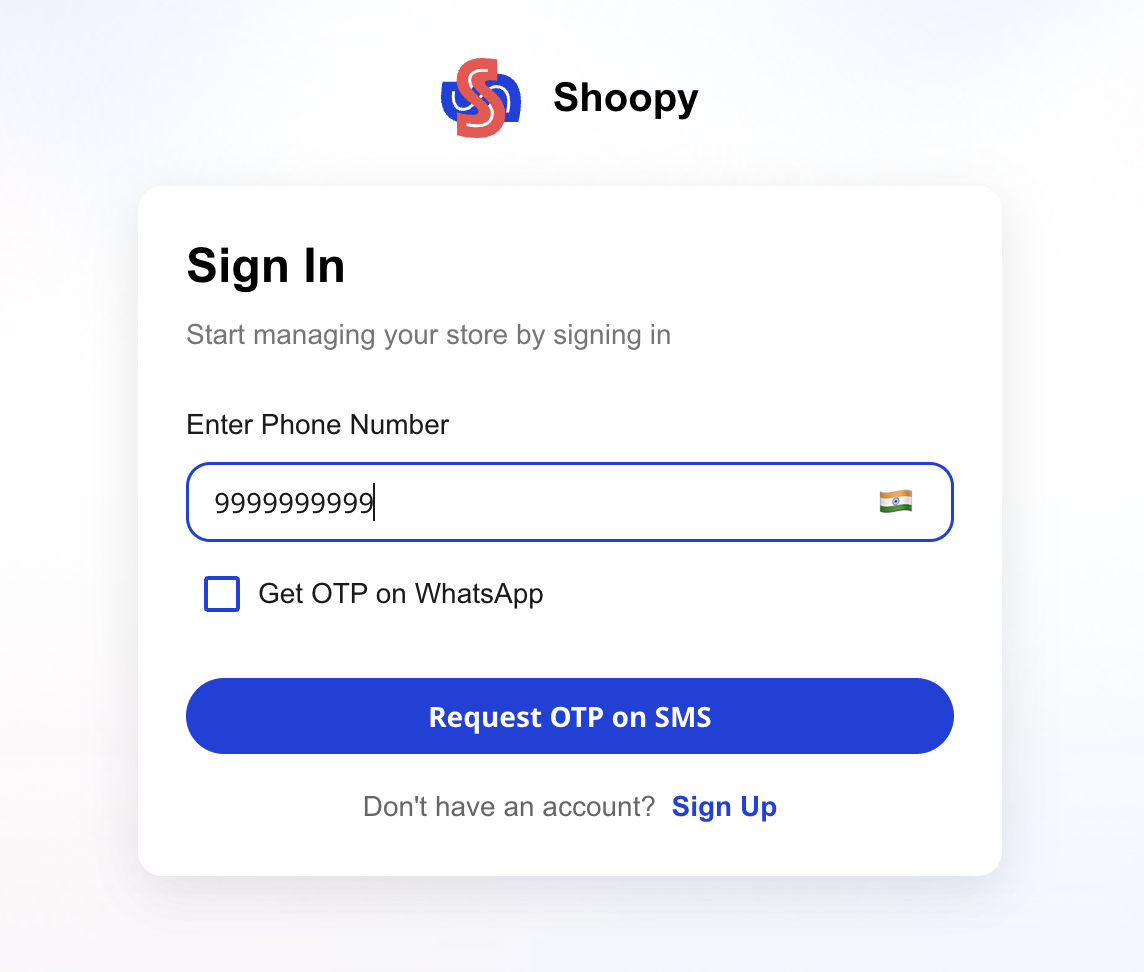
First, Shoopy’s login page accepts either a phone number or an email — the system auto-detects which one you typed. Then, after you tap Request OTP, Shoopy sends a short one-time code to that contact. Finally, you enter the code and you’re in.
| Step | What happens |
|---|---|
| 1. Enter contact | Type a phone number (with country code) or an email. Shoopy detects the type automatically. |
| 2. Choose channel (conditional) | In India, tick Get OTP on WhatsApp to receive the code on WhatsApp instead of SMS. The button label updates accordingly. |
| 3. Request OTP | Tap Request OTP on SMS (or Request OTP on WhatsApp). The code arrives in a few seconds. |
| 4. Enter OTP | Type the code into the OTP boxes. The form auto-advances between boxes as you type. |
| 5. Signed in | You land on the Shoopy admin Dashboard. |
Choosing your country and contact #
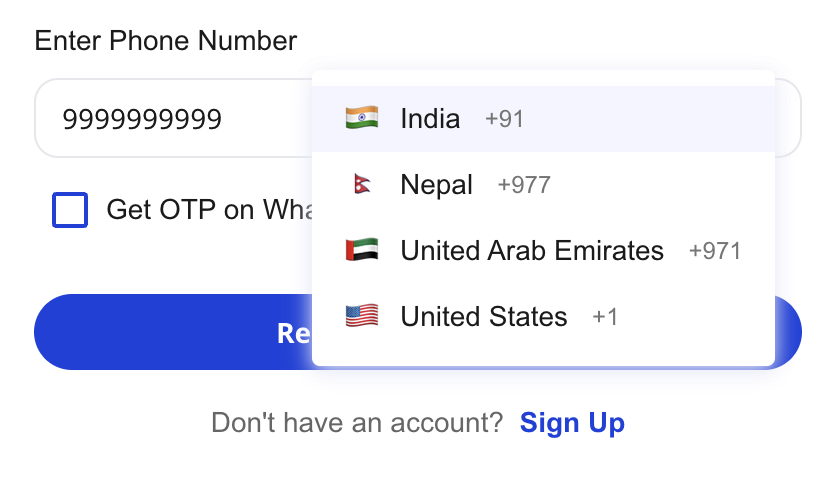
Before you enter your number, pick the correct country from the flag dropdown next to the phone field. The login dropdown lists India (+91), Nepal (+977), United Arab Emirates (+971), and United States (+1) — and Shoopy auto-detects your country based on your IP, so most merchants don’t need to change it.
Additionally, you can switch the input to an email address by simply typing an email instead of digits — Shoopy swaps the country selector for an email field automatically. This is useful if you registered with an email, or if SMS/WhatsApp isn’t reaching your phone.
OTP channels — SMS, WhatsApp, or email #
Shoopy sends your OTP through the fastest channel available for your region:
- SMS (India only): By default, Indian merchants receive OTP on SMS. However, carrier-level throttling can occasionally delay SMS delivery.
- WhatsApp: Also in India, you can check Get OTP on WhatsApp on the login screen to receive the code there instead. Outside India, WhatsApp becomes the only phone-based channel, and Shoopy uses it automatically.
- Email: If you enter an email address, the OTP lands in that inbox.
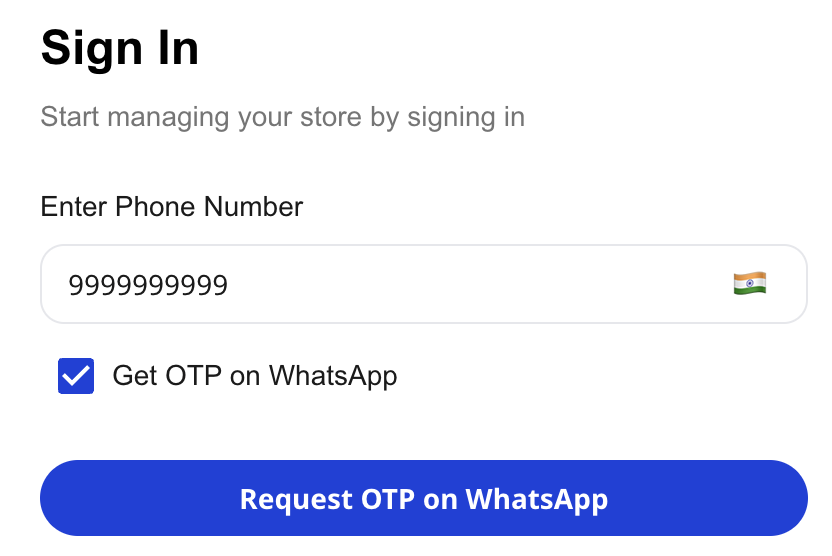
As a result, if SMS isn’t arriving, switching to WhatsApp (in India) or email is usually the fastest fallback.
Entering the OTP #
Next, on the Verify OTP screen, you’ll see a row of input boxes with the destination shown above (for example, “OTP sent to +91xxxxxxxxxx”). Type your code into the boxes — the form auto-advances as you type.
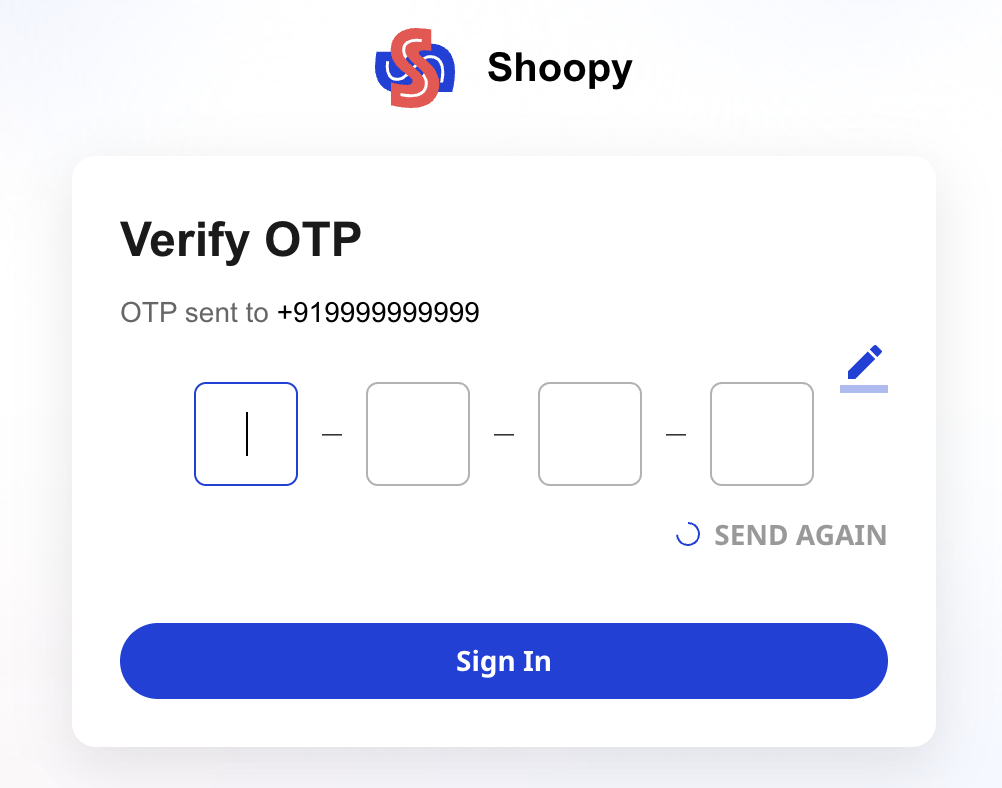
A few things to notice on this screen:
- Edit your number: The small pencil icon next to the boxes lets you go back and correct the phone/email you entered — useful if you typed the wrong digit.
- SEND AGAIN: A resend link appears after a short cooldown. If you don’t see the OTP, wait for the cooldown to finish, then tap SEND AGAIN.
- Resend limit: You can only resend a few times per session. After the limit, Shoopy shows “Resend limits exceeded” — you’ll need to go back and start a fresh OTP cycle.
- Invalid OTP: If you mistype, the screen shows INVALID OTP and you can try again. Additionally, repeated wrong attempts will temporarily lock out the number (see troubleshooting below).
Signing up vs. signing in #
Importantly, the OTP flow is the same for both new and returning users. However, there’s one key difference: when you tap Sign In with a number that isn’t registered, Shoopy shows “Number not registered, please Sign Up” instead of sending an OTP. In contrast, Sign Up sends OTP first and creates the account on successful verification.
Similarly, agency partners (Shoopy resellers) go through a slightly different Sign Up as Agency form that also uses OTP but asks for your agency name up front.
How long does the session last? #
Once you’re signed in, Shoopy keeps you signed in on that device and browser — so you won’t have to repeat OTP every time you open the admin. Generally, you’ll stay logged in until you Sign Out, clear your browser data, or switch to a different device or browser.
Additionally, you can stay signed in on multiple devices at the same time — for example, your laptop and your phone. Shoopy doesn’t enforce single-device login, so your POS terminal and your back-office laptop can both keep their sessions active.
Logging in on custom domains #
Finally, if your store runs on a custom domain (not web.shoopy.in), the login page still works the same way — enter phone/email, receive OTP, enter OTP. However, behind the scenes, Shoopy resolves your store from the domain name first, so the login page shows your store’s branding (no Shoopy logo or marketing).
For example, a merchant signing in on their own domain sees their own store’s branding on the login screen while the OTP mechanics remain identical.
Tips #
- First, save your Shoopy login URL as a bookmark. Generally, it’s either
web.shoopy.inor your own custom domain — bookmarking avoids typos that might land you on a lookalike page. - Also, use WhatsApp OTP if SMS is flaky. In particular, on networks where SMS arrives late, WhatsApp is usually instant.
- Additionally, email OTP is a good backup. If you’ve ever switched phone numbers, ensure you have an email on file so you don’t lose access if the phone number is no longer yours.
- Finally, sign out on shared computers. Because your session persists on the browser, anyone else using the same browser stays signed in — therefore, always Sign Out from the profile menu when you’re done on a shared device.
Troubleshooting #
Delivery problems #
Issue: I’m not receiving the OTP on SMS.
First, check that you picked the correct country code — a wrong country code is the most common cause. Then, wait a short moment for the cooldown to finish and tap SEND AGAIN. However, if SMS still doesn’t arrive, switch to WhatsApp (in India) or email OTP instead. Also, some carriers occasionally block transactional SMS — in that case, WhatsApp is more reliable.
Issue: “Resend limits exceeded” — what now?
Typically, this appears after too many resends on the same session. To recover, go back to the previous screen and re-enter your phone/email to start a fresh OTP cycle. Additionally, if this keeps happening, try a different channel (email or WhatsApp) to rule out a delivery issue on your original channel.
Account or access problems #
Issue: My number is temporarily blocked after multiple wrong OTP attempts.
For security, Shoopy temporarily locks a number (or email) after repeated failed OTP attempts — this prevents brute-force guessing. Generally, the block lifts automatically after a short cool-off period, so simply wait a while and try again. However, if you need to sign in urgently or the lock isn’t lifting, contact Shoopy support to have it unlocked manually. In the meantime, if you have email on file, you can usually sign in via email OTP instead.
Issue: “Number not registered, please Sign Up”.
Generally, this means no Shoopy account matches that phone number. Therefore, either sign up for a new account, or check whether your store uses a different number — for example, an owner may have signed up with their personal phone while staff expects to use a shared store number.
Verification and domain problems #
Issue: The OTP page keeps saying INVALID OTP.
In short, the code is wrong, expired, or outdated (you requested a newer OTP). First, tap SEND AGAIN to get a fresh code. Also, make sure you’re reading the latest OTP message — older OTPs from earlier attempts won’t work.
Issue: I’m stuck in a loop between login and OTP on a custom domain.
Usually, this means the domain isn’t fully resolved yet. As a workaround, log in via web.shoopy.in first. However, if the problem persists on your custom domain, contact support so we can check the DNS and store mapping.
Related articles #
- Create your Shoopy account
- The store setup wizard
- Choosing your Shoopy plan
- A tour of the Shoopy admin panel
Category: Getting Started · Author: Shoopy Team · Last reviewed: 2026-04-19