

Sign up for Shoopy in under a minute. There’s no password to remember — Shoopy sends a one-time code (OTP) to your phone or email for both signup and login.
Before you begin #
You’ll need one of:
- A mobile number that can receive SMS or WhatsApp
- An email address you’ll still have access to long-term
That’s it. You don’t need a business plan picked out or a payment method ready to create an account — every new store starts on the Free plan.
Step 1 — Request an OTP #
Open the Shoopy sign-up page. Enter your mobile number or email address in the Enter Email or Phone field, then click Request OTP.
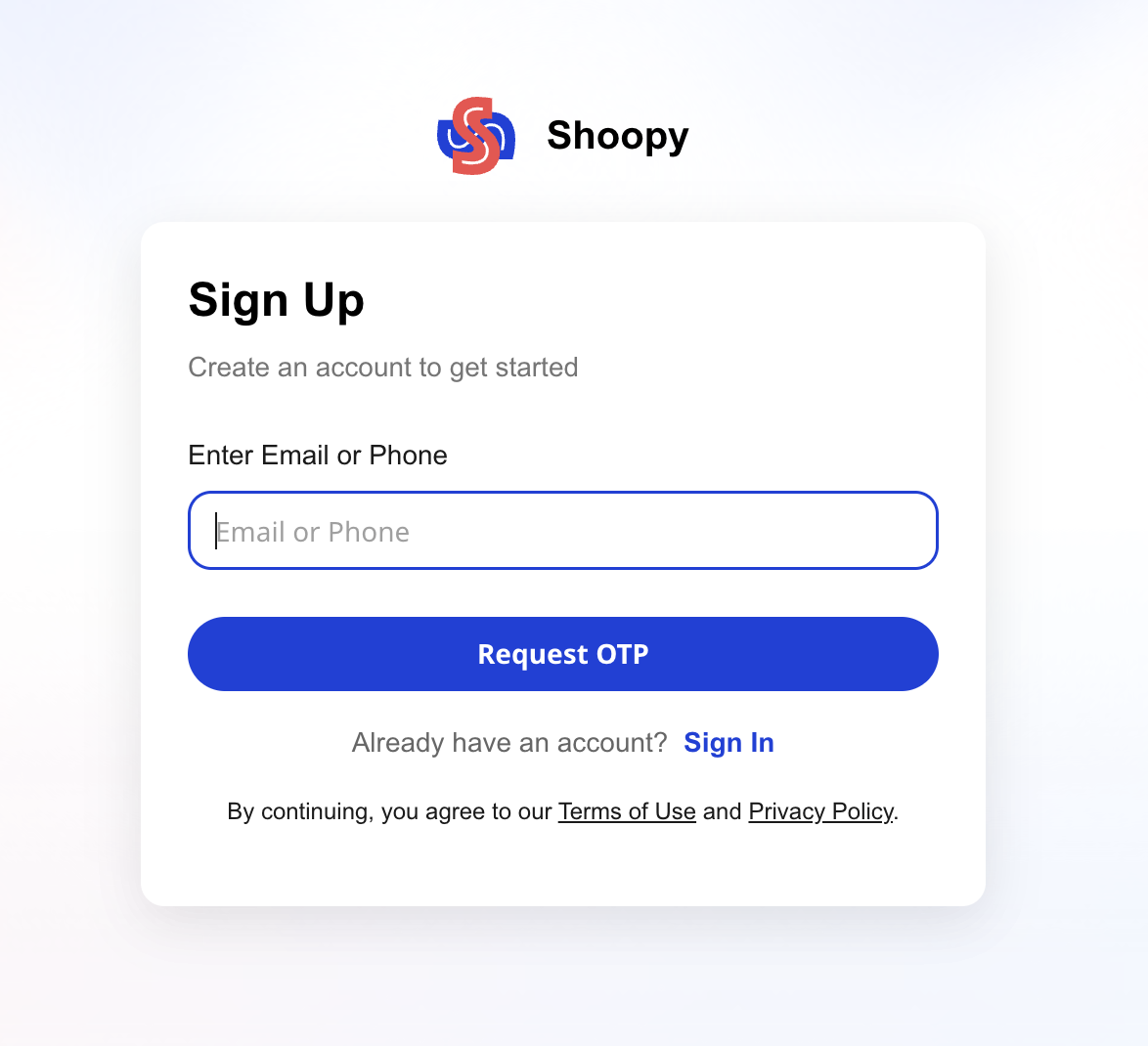
Already have a Shoopy account? Click Sign In at the bottom of the card to log in instead of creating a new store.
Step 2 — Verify with the one-time code #
Shoopy sends a 4-digit OTP to the number or email you entered. Type it into the four boxes on the Verify OTP screen, then click Sign Up.
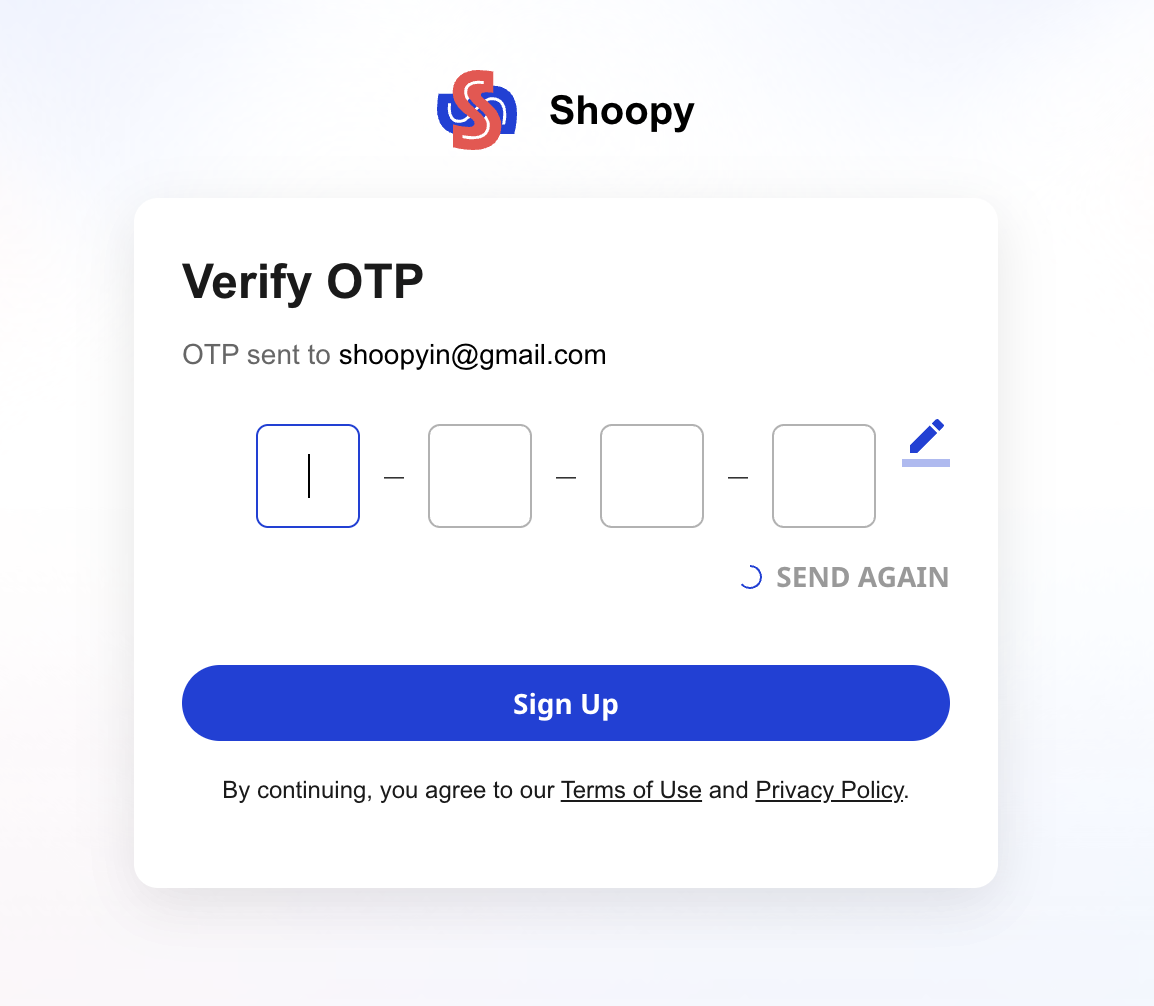
A few things to know on this step:
- If you don’t see the OTP in about 30 seconds, click SEND AGAIN
- Typed the wrong number or email? Click the pencil icon to go back and edit it before requesting a new code
- Each OTP expires after a short window — treat it as single-use
Step 3 — Enter your business details #
Once your OTP is verified, Shoopy takes you to the Business Details screen. This is where your store actually gets created.
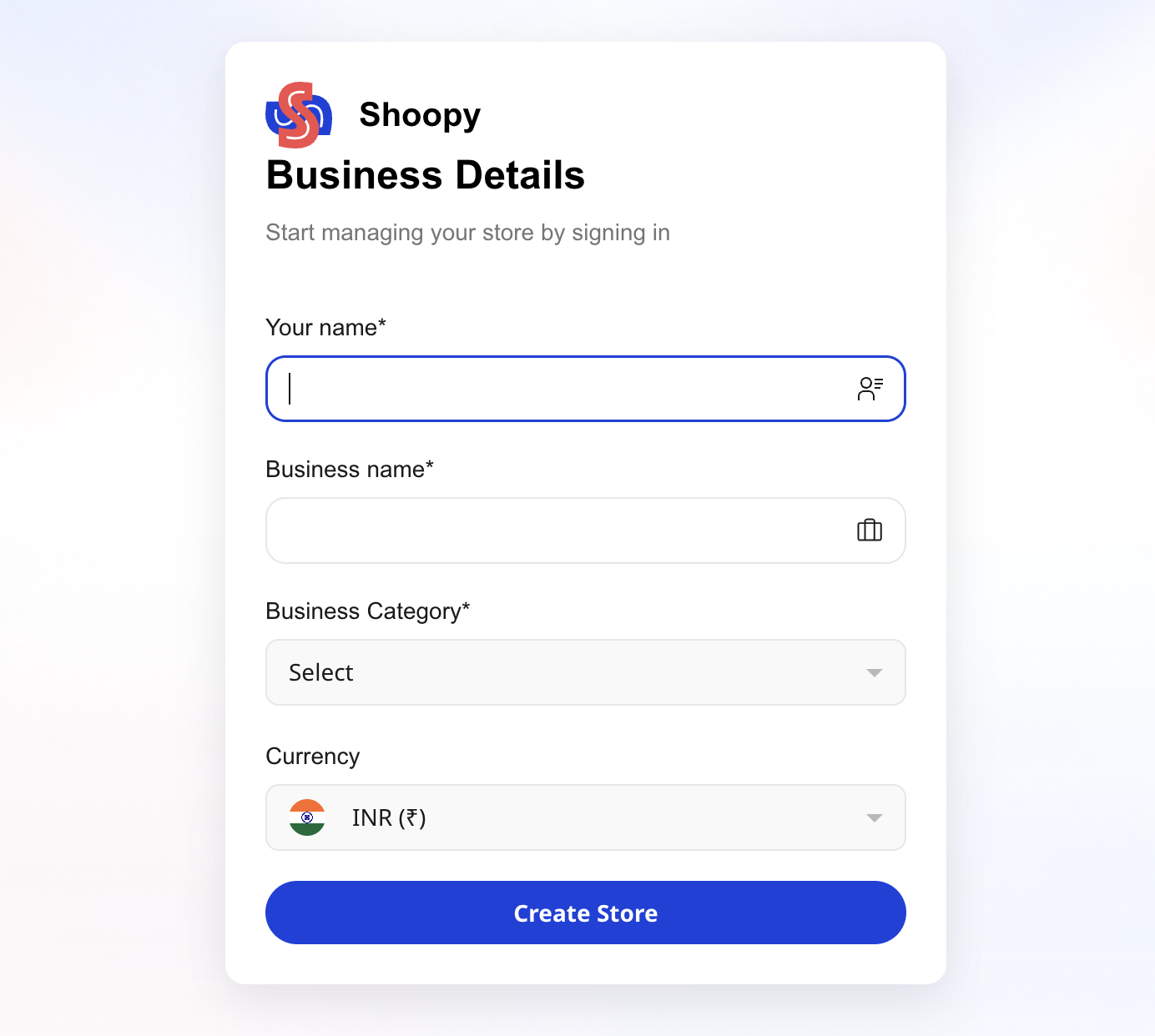
Fill in the form:
| Field | What to enter |
|---|---|
| Your name | The owner or primary contact name |
| Business name | The name of your store (e.g. Rameshwar Sweets) |
| Business Category | Pick the category that best fits your product line |
| Currency | Your default selling currency (defaults to INR) |
Click Create Store. Shoopy provisions your store, logs you in, and takes you straight to the admin dashboard.
For a deeper walk-through of the business-details step and the setup wizard that follows, see The store setup wizard.
Tips #
- Use the phone number you actually use day-to-day. Shoopy will send order alerts and verification codes here, so treat it as your operational number, not a temporary one.
- The email you enter becomes your login email. Pick one you’ll still have access to six months from now.
- You don’t commit to a plan at signup. Every new store starts on the Free plan — you can upgrade later from the Billing Plans page.
Troubleshooting #
Issue: I didn’t get the OTP.
Wait around 30 seconds and try SEND AGAIN. If you entered a phone number, make sure you’re in a network-connected area. If you entered an email, check your spam and promotions folders before retrying.
Issue: My OTP is rejected.
You may have typed one digit wrong, or the code may have expired. Request a fresh OTP and try again — don’t reuse an old code.
Issue: The email or phone I want to use is already registered.
Someone (possibly you, in an older session) has already created a Shoopy account with that email or phone. Click Already have an account? Sign In on the sign-up page and log in with OTP there instead of creating a second account.
Related articles #
Category: Getting Started · Author: Shoopy Team · Last reviewed: 2026-04-18