

Shoopy has its own vocabulary. For example, words like Variant, Contract, and Multipack have a very specific meaning. So, this page defines the most common Shoopy terms. Also, it groups them by admin area. Then, each entry points to the right sidebar module. In short, you’ll know where to look. Moreover, the same terms work on web.shoopy.in. Finally, they also work on custom-domain stores like www.aziri.in and www.instaecart.com.
Before you begin #
- First, this glossary is a simple reference. So, you don’t need any special permissions.
- However, a module may be hidden for your role. Also, your plan may gate it. In short, ask the owner for access if a module is missing.
- Finally, new to Shoopy? Then, start with A tour of the Shoopy admin panel first.
Catalog terms #
First, Shoopy’s catalog uses a few overlapping terms. So, this section makes them clear.
Product structure #
Product — a sellable item in your catalog. In short, it’s the umbrella for everything else. For example, a product can be one item with one price. Also, it can hold variants, bundles, or multipacks. Finally, manage products under Catalog → Products.
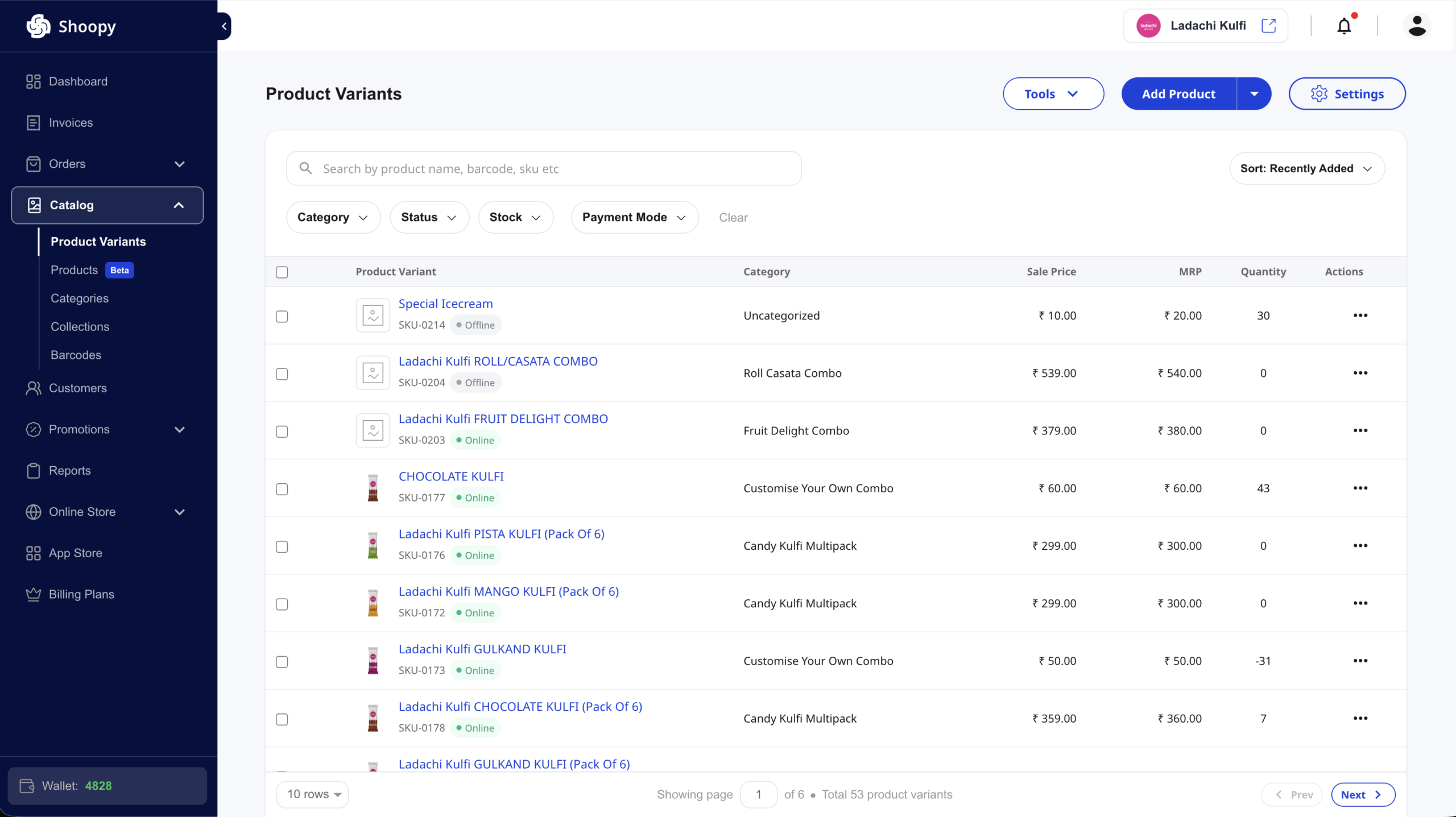
Variant (Product Variant) — one SKU-level option inside a product. For example, “T-shirt · Red · Medium” is a variant. Also, each variant has its own price, stock, and barcode. Typically, a fashion store like www.aziri.in uses variants for size and colour. Finally, manage them under Catalog → Product Variants.
Bundle — a group of products or variants sold as one package. For example, a “Gift Hamper” is a bundle. Also, you set up bundles inside a product.
Multipack — a pack of the same product sold together. For example, “Soap × 5” or “12-pack Cola” is a multipack. Similarly, you set up multipacks inside a product.
Stock identifiers #
SKU (Stock Keeping Unit) — a unique code for each variant. As a result, your inventory system can track each item. Also, you need an SKU to print a barcode.
Barcode — a machine-readable code tied to a variant. In short, your POS scans it at checkout. Also, your team uses it for stock audits. Finally, manage barcodes under Catalog → Barcodes.
Attribute (Additional Field) — a custom field on a product or variant. For example, “Colour”, “Material”, or a size chart is an attribute. Also, you add attributes from the product’s edit screen.
Grouping #
Category — a taxonomy node that groups products. For example, “Men → Shirts → Formal” is a category path. Also, each product belongs to one category. Finally, manage categories under Catalog → Categories.
Collection — a curated set of products. In short, it doesn’t follow the category tree. For example, “Summer Sale” or “Trending This Week” is a collection. Also, collections can be manual, category-based, or HTML-defined. Finally, find them under Catalog → Collections.
Orders and invoicing terms #
Order — a customer purchase from your store. Also, staff can create a manual order. Finally, track orders under Orders → Online.
Purchase Order (PO / Purchase) — an inbound order to your supplier. In short, it restocks your inventory. In contrast, a customer Order moves stock out. Finally, manage POs under Orders → Purchase.
Estimate — a draft quote for a customer. In short, it goes out before the customer buys. Then, an estimate becomes an invoice on confirm. Also, find them under Orders → Estimate.
Invoice — a billing document for a confirmed sale. In short, it’s separate from the Order record. Therefore, one Order can have many Invoices. For example, partial shipments make many Invoices. Finally, manage them in the Invoices module.
Abandoned Cart — a cart that never checked out. Also, Shoopy tracks them for you. As a result, you can recover lost sales with reminders. Finally, find them under Orders → Abandoned Carts.
Return — a return request from a customer. Also, you can refund to the original method or the wallet. Finally, set return rules under Online Store → Store Settings → Returns.
Customer and money terms #
Customer — a buyer in your store. Also, Shoopy tracks their profile, orders, and wallet. Finally, manage them under Customers.
Customer Wallet — a prepaid or loyalty balance for one customer. In short, customers top up, earn, or spend it at checkout. Also, set wallet rules under Customers → Wallet Settings.
Wallet Points (Credit Points) — a loyalty currency your customers earn. In short, they earn points when orders hit certain statuses. For example, ₹1 spent can equal 1 point. However, this is not the same as your own Shoopy Credits. In short, don’t mix up the two.
Refer & Earn — Shoopy’s built-in referral program. In short, existing customers invite new ones. As a result, both sides earn points or discounts. Finally, set it up under Promotions → Refer & Earn.
Coupon — a discount code used at checkout. Also, coupons support percent-off, flat-off, and BOGO deals. Finally, manage them under Promotions → Coupons.
Banner — a promo image or HTML block on your store. For example, a homepage hero is a banner. Also, find banners under Promotions → Banners.
Online store and setup terms #
Storefront — the buyer-facing side of your store. In short, it’s the public site and app your buyers see. In contrast, the admin is the panel you and your staff use.
Theme — the visual template for your storefront. In short, it sets the look and layout. Also, pick themes under Online Store → Themes. Finally, tweak colours and fonts under Online Store → Display Settings.
Custom Domain — a domain you own mapped to your store. For example, yourstore.com replaces web.shoopy.in in the URL. As a result, the store gets its own branded experience. For example, www.instaecart.com runs on Shoopy on its own domain.
Store Location — a physical outlet, warehouse, or fulfilment point. In short, you hold stock at each location. Also, each location has its own inventory and staff. Finally, manage them under Online Store → Store Locations. However, multi-location unlocks only on a supported plan.
Store Switcher — the header control with your store’s logo and name. Also, it lets you jump between your stores. As a result, you don’t log in again.
Users and access terms #
User (Staff) — anyone with login access who isn’t a customer. For example, owners, managers, cashiers, and support are all staff. Also, manage users under Online Store → Users & Roles.
Role — a bundle of permissions. For example, a “Catalog Manager” role can edit products. However, it can’t see Billing. Also, create roles under Online Store → Users & Roles.
Staff Seat — one billable user slot on your plan. Also, each plan caps the number of seats. For example, Free and Basic give 1 seat each. In contrast, Professional gives up to 5 and Business up to 25.
Location Admin — a staff role scoped to chosen locations. In short, a location admin sees read-only products. Also, they manage inventory only for their locations. As a result, the role fits outlet managers. In contrast, a full admin sees every location.
Agency — a Shoopy reseller or partner. Typically, an agency manages many stores for clients. Also, agencies sign up through a separate flow. Finally, they get tools like fund transfers and client dashboards.
Subscription terms #
Subscription Plan (Recurring Plan) — a template for recurring orders. For example, “Coffee, 250g, every 2 weeks” is a plan. Also, manage templates under Subscription → Plans.
Contract (Subscription Contract) — an active recurring deal with a customer. In short, Shoopy makes a contract when the customer subscribes. Also, contracts track deliveries, pauses, and cancellations. Finally, find them under Subscription → Contracts.
Plan and billing terms #
Billing Plan (Plan / Subscription Tier) — your Shoopy pricing tier. For example, Shoopy offers Free, Basic, Professional, and Business plans. Also, each tier unlocks more products, seats, and features. Finally, compare plans under Billing Plans. For details, see Choosing your Shoopy plan.
App Store — Shoopy’s add-on marketplace. For example, it offers extra payment gateways and shipping tools. Also, find it in the sidebar.
Shoopy Credits (Wallet) — your merchant-side store credit. In short, it sits at the bottom of the sidebar. Also, you earn credits from referrals and promotions. Then, you spend them on plan upgrades and add-ons. However, this is not the Customer Wallet, which is the buyer balance.
Communication terms #
OTP (One-Time Password) — a short code sent on SMS, WhatsApp, or email. In short, it verifies your login or a sensitive action. For the full flow, see Logging in with OTP.
Channel — a delivery medium for a message. For example, a channel can be SMS, WhatsApp, Email, or Push. Also, Shoopy picks the channel based on the event and your plan.
Push Notification (FCM) — an in-app alert sent via Firebase Cloud Messaging. For example, “Your order has shipped” is a push alert. However, Shoopy turns off push on custom-domain admin panels for security.
Related articles #
- Create your Shoopy account
- A tour of the Shoopy admin panel
- Choosing your Shoopy plan
- Logging in with OTP
Category: Getting Started · Author: Shoopy Team · Last reviewed: 2026-04-20